<assembly.explosion.stage />
assembly.explosion.stage names a step in an exploded assembly view. Put stages inside an assembly.device or assembly.subassembly, with one or more assembly.explosion.move children.
Import assembly from @tscircuit/core. Use assembly.explosion.stage and assembly.explosion.move directly; there is no <assembly.explosion> wrapper.
Lift the cover and bolts together
The first stage below lifts the cover and every part targeted by remove-bolts. The second stage then pulls the bolts farther out. The PCB stays fixed. The cylinders stand in for the two fasteners in this small example.
import { assembly } from "@tscircuit/core"
import { Cuboid } from "jscad-fiber"

export default () => (
  <assembly.device name="case">
    <board width="30mm" height="24mm" />
    <assembly.printedpart
      name="cover"
      color="#3283b5"
      jscad={<Cuboid size={[28, 22, 2]} center={[0, 0, 6]} />}
    />
    {[-10, 10].map((x, i) => (
      <assembly.part
        key={i}
        name={`bolt${i + 1}`}
        cadModel={{
          jscad: { type: "cylinder", radius: 1.5, height: 8 },
          positionOffset: { x, y: 0, z: 4 },
        }}
      />
    ))}
    <assembly.explosion.stage name="lift-cover">
      <assembly.explosion.move
        targetRefs={["cover", "remove-bolts"]}
        offZ="12mm"
      />
    </assembly.explosion.stage>
    <assembly.explosion.stage name="remove-bolts" prevStageRef="lift-cover">
      <assembly.explosion.move targetRefs="bolt1, bolt2" offZ="10mm" />
    </assembly.explosion.stage>
  </assembly.device>
)
Targeting another stage selects its members; it does not execute that stage's instructions or change playback order. A stage can be referenced before its declaration, as remove-bolts is here.
Stage properties
| Property | Description |
|---|---|
name | Required stage name, unique in its assembly scope. |
prevStageRef | Stage that must finish before this one. |
nextStageRef | Stage that must start after this one. |
children | Ordered assembly.explosion.move elements. |
Ordering references resolve relative to the owning assembly. Use a qualified path, such as case.remove-bolts, when addressing another scope. Stages without ordering constraints follow stable depth-first TSX order. Unknown references, duplicate stage paths, ordering cycles, and cyclic stage membership are errors.
Play the explosion in the 3D viewer
If you open the assembly in tsci dev or any tscircuit 3D viewer, right-click the 3D view and select Advanced → Exploded view…. Scrub the slider through each stage, use Reset to return to the assembled pose, or close the panel to restore it.
This recording shows the 3D viewer playing a handheld console's explosion stages in reverse, with movement guides visible as the parts come back together.
Export an explosion MP4
The CLI can turn the authored stages into a video with a fixed camera, stage captions, and automatic movement guide lines. Install FFmpeg with the libx264 encoder on PATH, then run:
tsci export assembly.circuit.tsx --format explosion-mp4 -o assembly.mp4
An assembled .circuit.json file containing the explosion instructions works too. Use --fps, --width, --height, --stage-duration, and --hold-duration to control the output. See the CLI reference for defaults, ranges, and output paths.
This 6.5-second CLI export uses our real RP2040 motor controller, NEMA17, cover, spacers, and M3 bolts. The cover and bolts lift together first, followed by separate bolt, motor, and spacer movements.
Download the MP4. This is the committed CLI test video; its tests check decoded stage images, frame count, and timing.
Sample a stage or export each frame
Use the exported Circuit JSON as circuitJson in this example.
import { getCircuitJsonAssemblyExplosion } from "@tscircuit/core"
import {
  convertCircuitJsonToGltf,
  getAssemblyExplosionFrames,
} from "circuit-json-to-gltf"

const halfway = getCircuitJsonAssemblyExplosion(circuitJson, {
  throughStageRef: "case.remove-bolts",
  stageProgress: 0.5,
})

for (const frame of getAssemblyExplosionFrames(circuitJson)) {
  const glb = await convertCircuitJsonToGltf(circuitJson, {
    format: "glb",
    explosion: frame.explosion,
  })
  // Save/render glb, keep one camera, and label it with frame.name.
}
stageProgress ranges from 0 to 1, dividing the selected stage equally among its sequential moves. Earlier stages stay complete. Each evaluation starts from the original assembled positions, so backward scrubbing does not accumulate movement. Use the original assembled export as the input for each playback or export operation.
getAssemblyExplosionFrames returns the assembled frame and every completed stage in order. Each exported GLB is a static pose, not an animation track.
Render explosion images in CircuitPreview
Pass explosion={{ throughStageRef: "case.remove-bolts", stageProgress: 0.5 }} for one pose, or explosionStages for a named image sequence:
<CircuitPreview
  code={assemblyTsx}
  circuitJson={exportedCircuitJson}
  defaultView="3d"
  explosionStages={[
    { name: "Assembled" },
    { name: "Lift cover", explosion: { throughStageRef: "case.lift-cover" } },
    { name: "Remove bolts", explosion: { throughStageRef: "case.remove-bolts" } },
  ]}
/>
Each selected image and its rotatable model use the same pose. The image service accepts explosion_stage and explosion_progress for 3D PNG, SVG, and GLB output. Omit both for the assembled pose. See the image service API.
Movement guides are included automatically when exporting an exploded pose. Use the original assembled export as input. No additional TSX props are needed to show the guides.
Real RP2040 / NEMA17 assembly
This example uses the routed RP2040 motor controller, a NEMA17, four spacers, bolts, and a cover. The cover and bolts first lift together, followed by separate bolt, motor, and spacer removal. Step through each completed stage or the halfway bolt-removal pose; click the image to rotate it.
The overview below pairs the authored stages with all six poses:
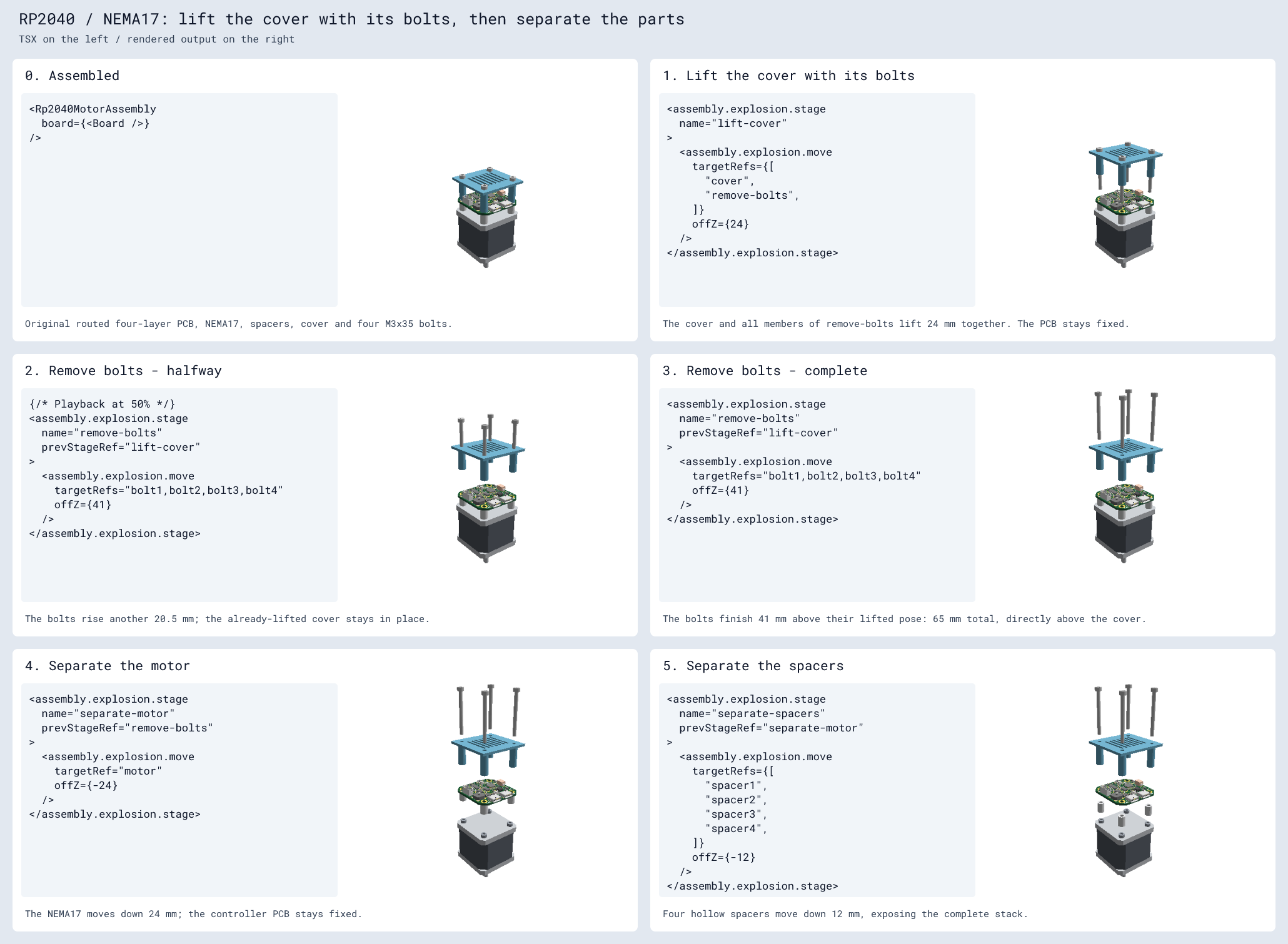
The complete TSX and reproduction instructions preserve the original board's routed copper and document its pinned build dependencies.
Limits
Explosion moves translate mechanical CAD and reference surfaces. Targets containing PCB or cable geometry are rejected, and rotation instructions are not supported. Guide lines and videos show the requested motion; they do not verify assembly clearance.
tscircuit reports errors for collisions introduced during explosion movement. Existing overlap in the assembled pose is excluded. Unsupported, missing, or invalid geometry produces warnings, so review both errors and warnings when assessing clearance.